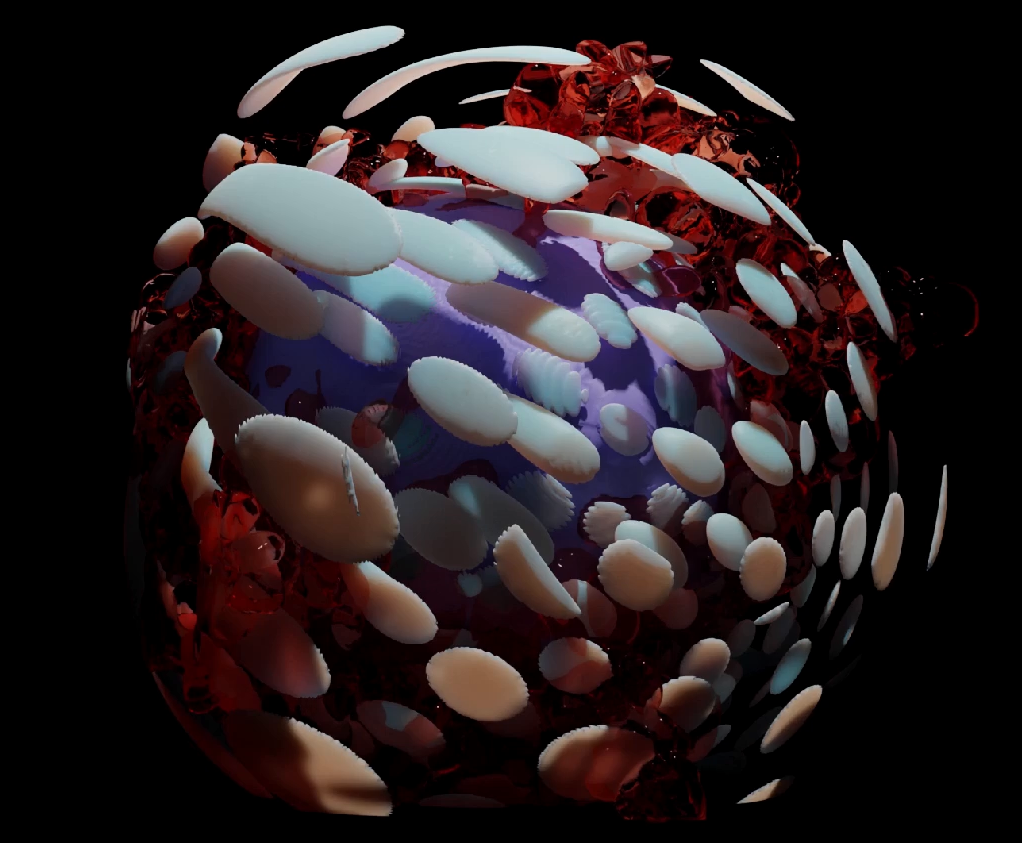
Rendering in Blender
Deborah Schmidt
Sep 25, 2024

Create a New Blender Scene
- Install Blender from the official website: https://www.blender.org/download/
- Launch Blender and create a new scene.
General Usage
Import Mesh Files
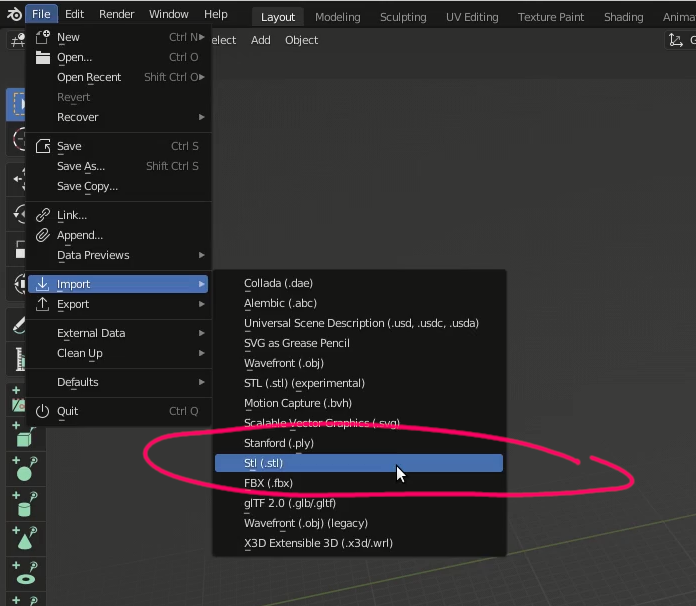
- Go to
File > Import > STL (.stl) - Imported objects might be scaled too large or small. To adjust, go to the Layout tab, select the object, and press
nto open the options for scaling.
General Usage
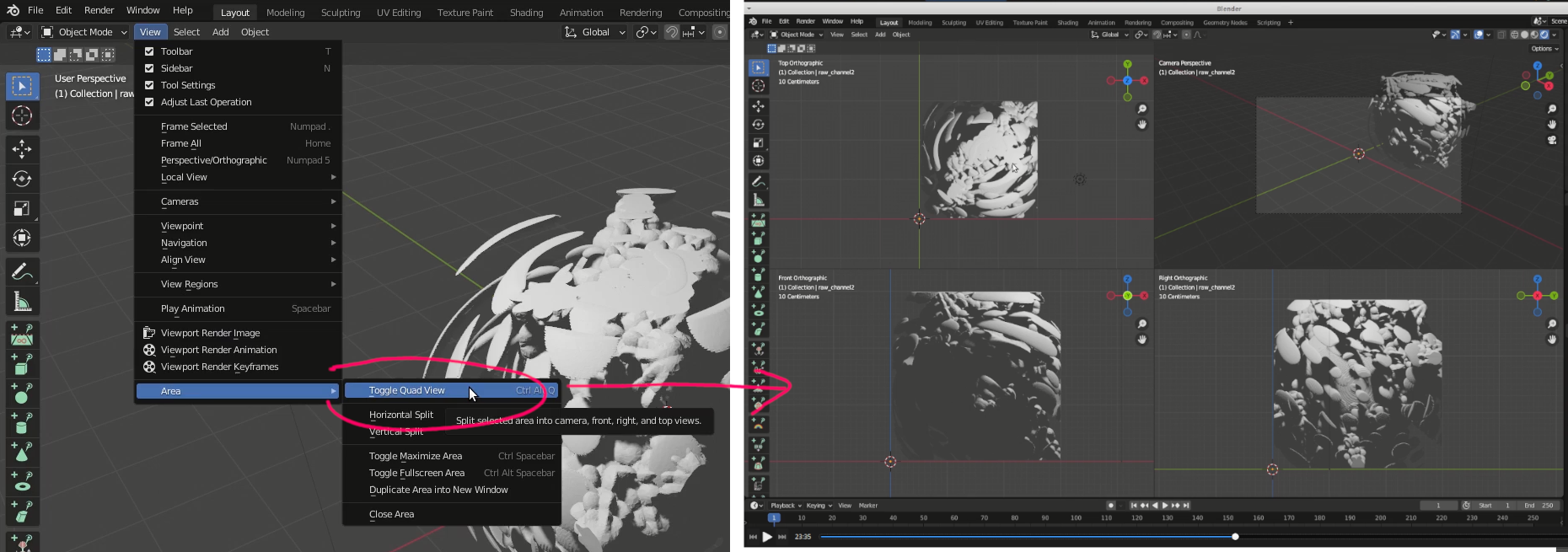
Toggle Quad View
- To enable Quad View, go to View > Area > Toggle Quad View
General Usage
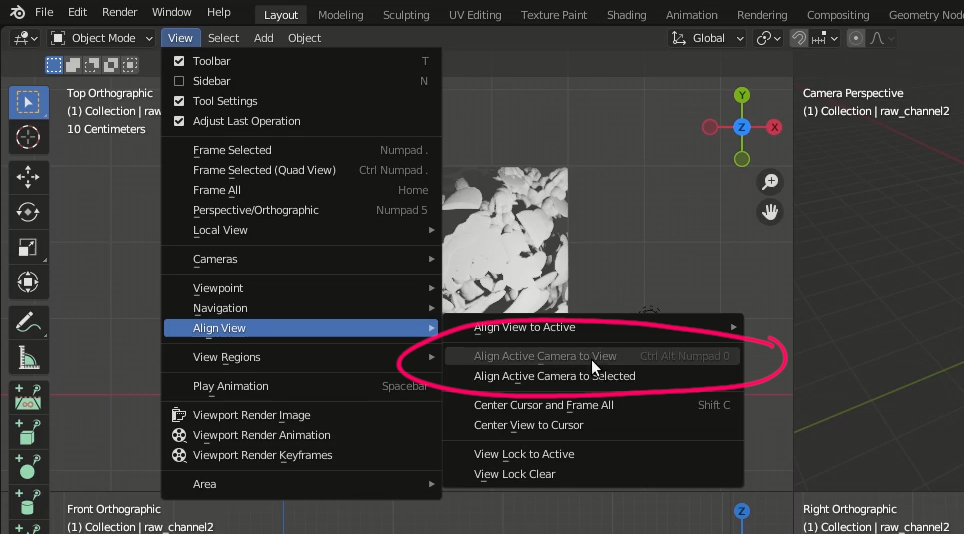
View from the Camera
- Go to View > Viewpoint > Camera for switching to camera view
- Go to View > Align View > Align Active Camera to View for adjusting the camera to the current view
Performance
Set View Parameters
- Use the Viewport Shading buttons in the top right corner to change shading modes:
- Rendered mode for full previews.
- Material preview mode for a balance between performance and detail.
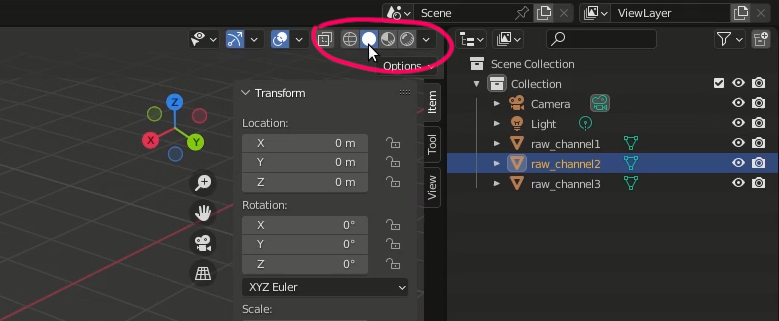
Performance
Adjust GPU Settings
- Blender requires a GPU with at least 2GB of VRAM.
- To configure your GPU, go to
Edit > Preferences... > System > Cycles Render Devices - Ensure that GPU Compute is selected under
Cyclesas the Render Engine.
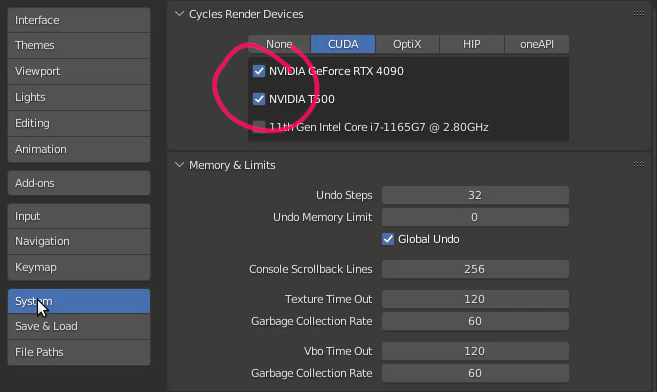
Performance
Adjust Render Parameters
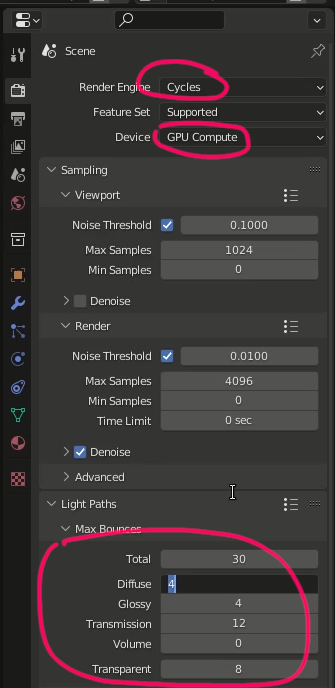
- In the Rendering tab, under
Render Properties, increase values in the Light Paths section with glass or glossy materials, or decrease these values to improve performance. - In Output Properties, Adjust the resolution percentage for fast preview renderings or detailed print renderings.
Object appearance
Smooth Shading for Objects
- Right-click the object and select Shade Smooth to apply smooth shading.
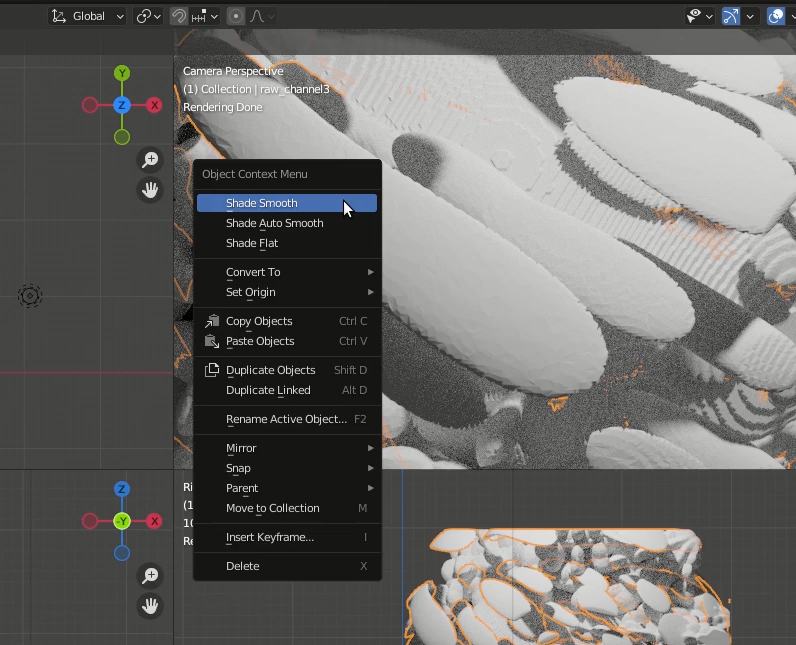
Object appearance
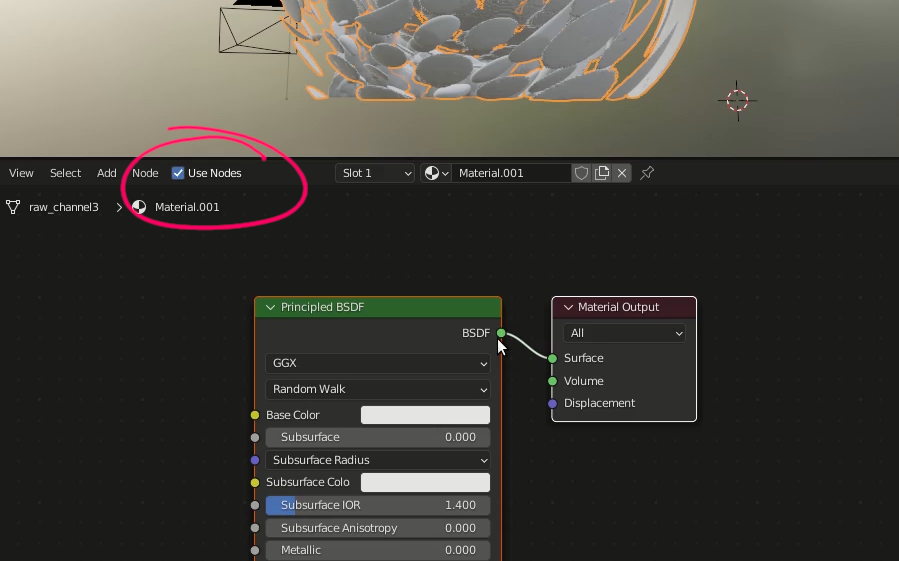
Apply Material to Object
- Go to the Shading tab and select Use Nodes.
- Explore the options under Principled BSDF:
- Increase Subsurface to make materials look soft.
- Use the
Add > Searchfunction to find shaders like Glass for transparency effects.
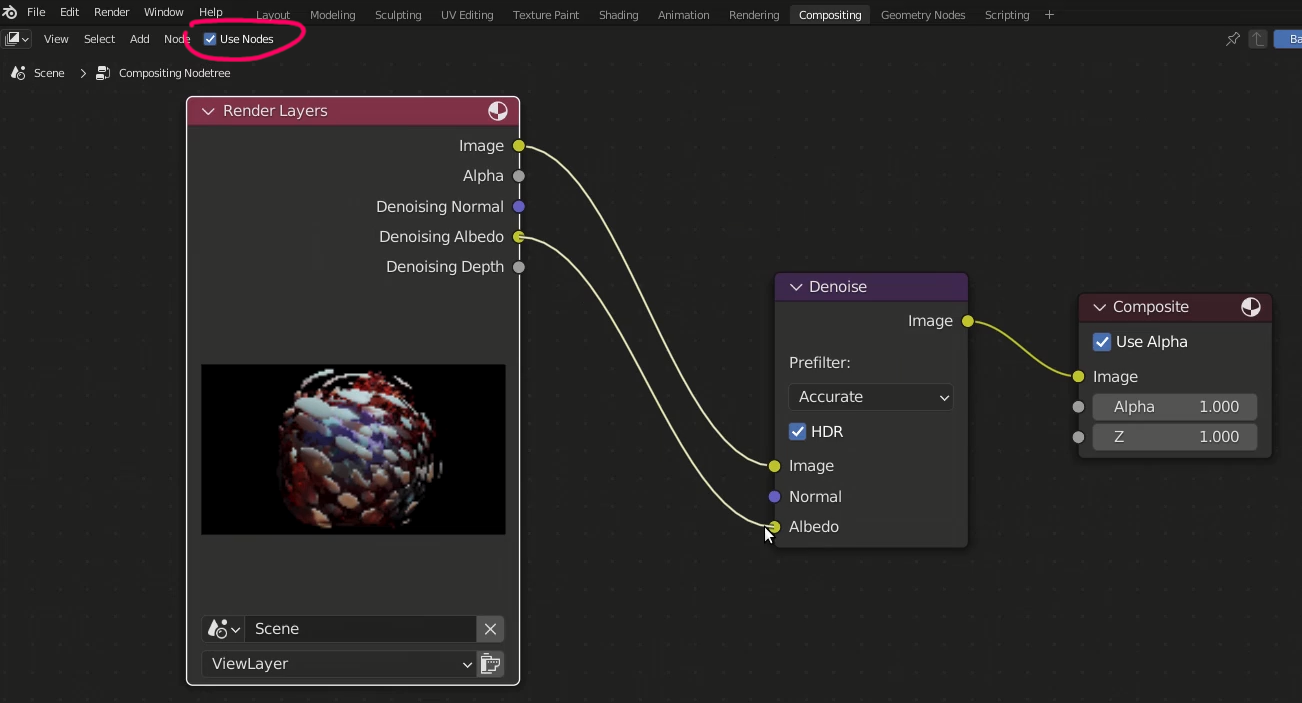
Denoising the Render
- In the Rendering Tab, under
View Layer Properties: - Under
Passes > Data, select Denoising Data. - In the Compositing Tab:
- Check the Use Nodes checkbox.
- Add a Denoise node (
Add > Search > Denoise) and connect the nodes as follows:- Connect
Render Denoising NormalandDenoising AlbedotoNormalandAlbedoof the Denoise node. - Connect
Imagefrom the Denoise node toImageof the Composite node.
- Connect
Happy rendering!