Exploring the Report
Open your report in one browser tab and keep this page in another. No report of your own yet? Open the example dataset used for the screenshots below and follow along with that instead.
The example screenshots below are from the WHOI plankton microscopy dataset, which we deliberately tampered with to create four synthetic conditions: original images, blurred images, JPEG-compressed images, and noisy images. This makes it easy to see what each widget catches.
A few things to know before you start:
- Some charts collapse into a table. If all your images share the same value for a property (e.g. they're all the same size, or all the same dtype), Pixel Patrol shows a summary table instead of a chart.
- Widget availability depends on what was processed. Widgets that need data not collected simply don't appear. The colored pill on each card tells you what's required.
- Everything reacts to the sidebar. Grouping, filters, and dimension selectors update all widgets instantly - we'll cover the sidebar at the end.
Reading the cards:
pixel-patrol-loader-bio)
needs pixel-patrol-image quality metrics package
multidim only non-spatial dimensions (e.g. Z/T/C/S) with >1 slice
Each widget also carries a small scope badge telling you what one datapoint represents - hover it for details:
Opening your report
This starts a local server with native DuckDB and opens the viewer in your browser - recommended for any non-trivial dataset. You can also go to ida-mdc.github.io/pixel-patrol/viewer/ and drag your own .parquet in directly (browser-WASM, practical limit ~2 GB).
Useful launch flags:
pixel-patrol view report.parquet --group-by file_extension   # start grouped differently
pixel-patrol view report.parquet --filter-col dtype --filter-op eq --filter-val uint16
pixel-patrol view report.parquet --dim z=5                   # lock to a Z slice on load
pixel-patrol view report.parquet --significance              # show stat brackets from the start
Widget walkthrough
Answer the three questions below and the cards for widgets that don't apply to your setup will dim out as you scroll through the walkthrough - so you can see at a glance which ones are actually relevant to you.
pixel-patrol-loader-bio)?
pixel-patrol-image installed at processing time?
Click the ✓ in the corner of each widget card to mark it as reviewed and track your progress through the walkthrough.
Your first sanity check: a summary for the whole dataset (files, images, total size, file extensions) - when grouped, a per-group breakdown table of file count and size.
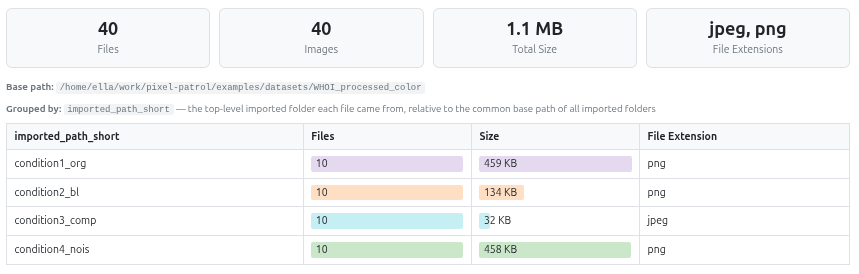
condition3_comp is 10× smaller on disk. Already suspicious before looking at a single pixel.A sortable, searchable table with one row per image, showing every column except thumbnails and other binary/array data. Click a column header to sort; press Enter in the search box to search by substring - across all columns for datasets under 10,000 images, or just path/child_id for larger ones.
File count and total size by extension, file size distribution, and a modification timeline.
🔬 How it's computed
mtime.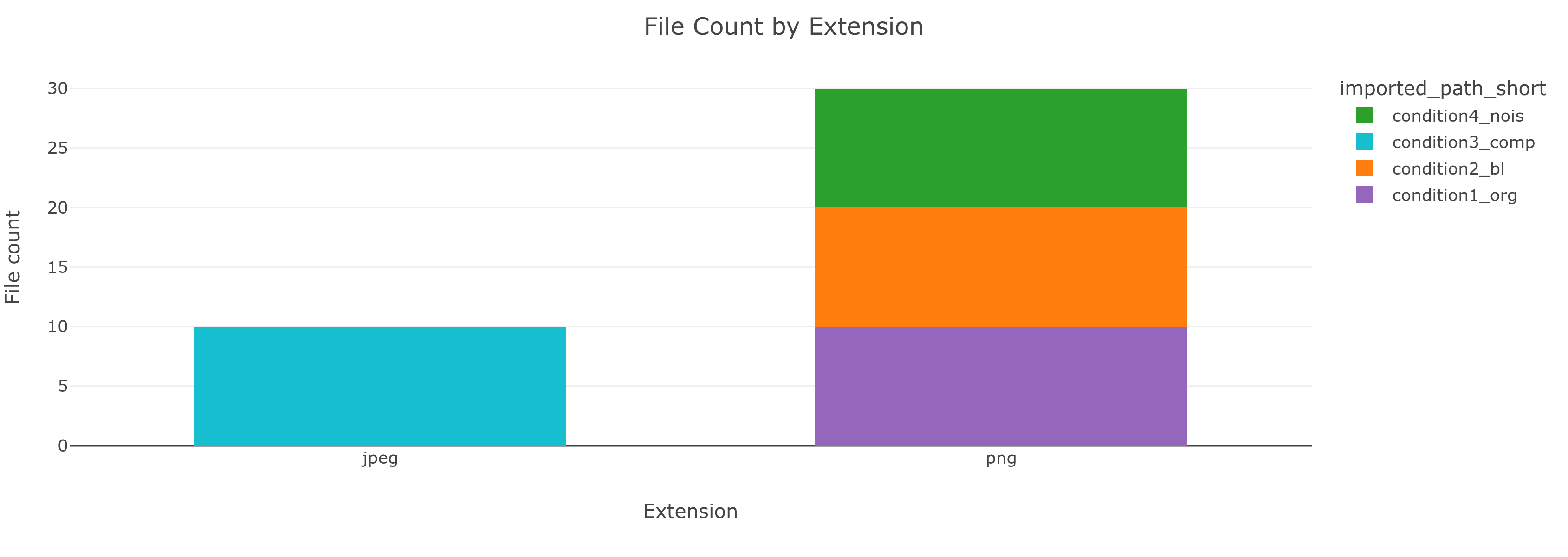
condition3_comp is the only group with .jpeg files. JPEG compression probably explains the smaller file sizes.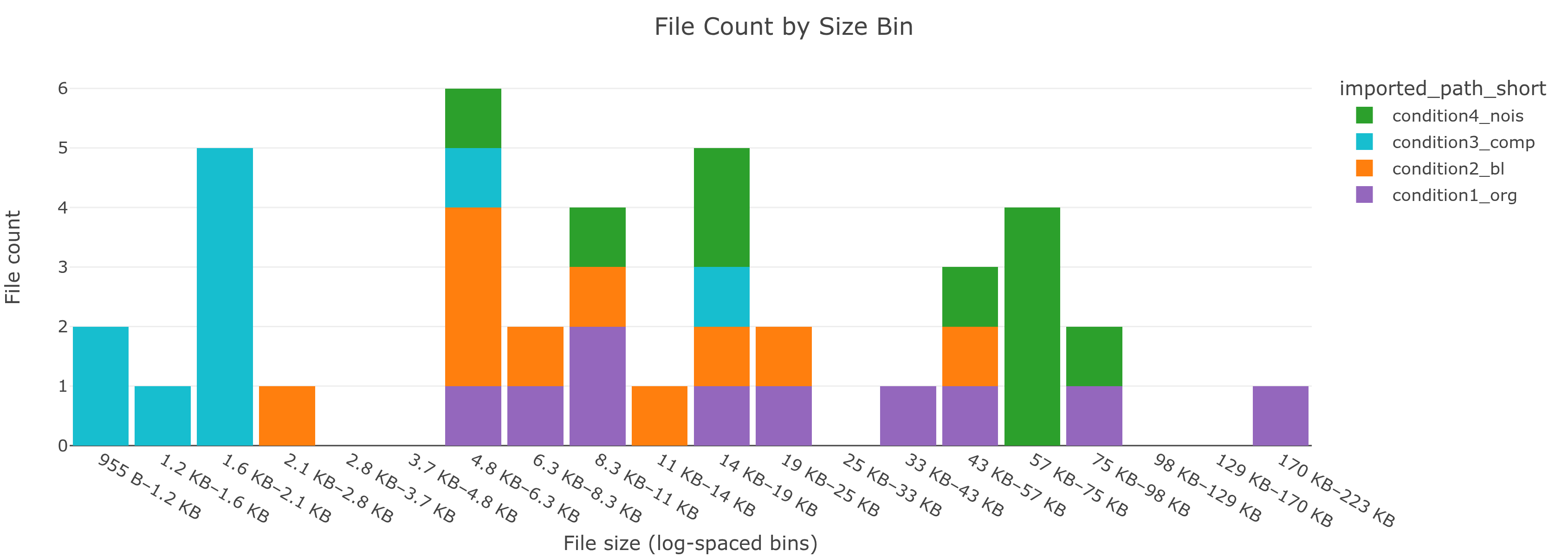
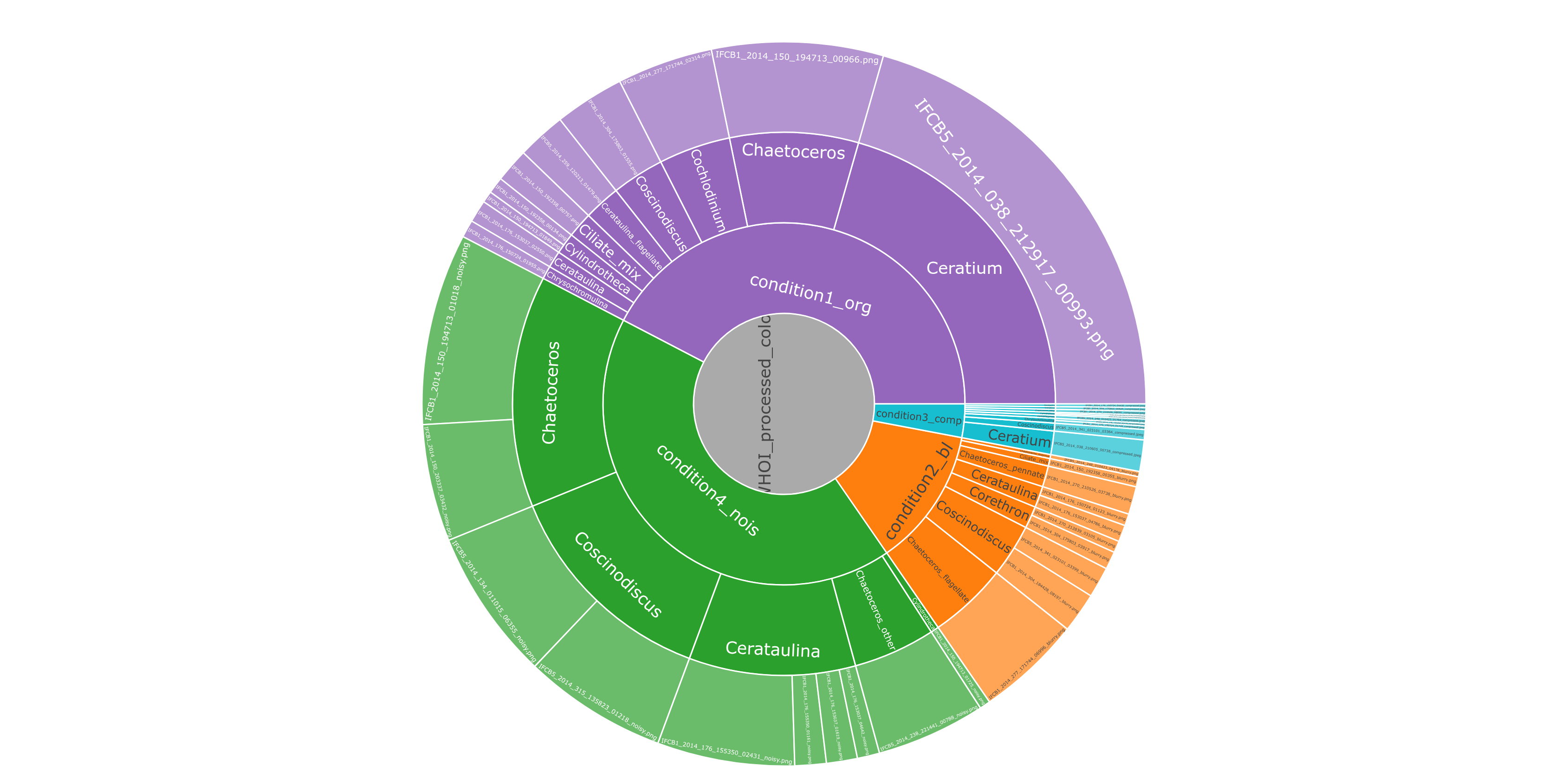
condition3_comp has .jpeg files. Mixed extensions across groups can mean a mixed dataset - images exported in two formats, or even saved twice.An interactive sunburst of your folder hierarchy. A toggle lets you size the segments by file count or by total size - the screenshot below shows the by-size view. Only files that were actually scanned into the report are included. Click any segment to zoom in; click the center ring to zoom out.
Distribution of dtype and dim_order across groups, plus a summary table of other properties - ndim and pixel size, where available - for the cases where every file shares the same value.
dtype, dim_order, or ndim vary across your files, that points to inconsistent acquisition - possibly different instruments or different acquisition parameters - and is worth verifying before you compare groups. Mixed-dtype example: uint8 lives in [0, 255] while uint16 lives in [0, 65535], so a pixel value of 100 means something completely different in each.dtype, dim_order, and ndim across the whole dataset - format-level consistency confirmed.X/Y scatter plot (width vs. height, one point per image) plus strip plots for any non-spatial dimensions present (e.g. Z, T, C, S - names depend on your loader). Quickly reveals outliers and whether your images are consistently sized across groups.
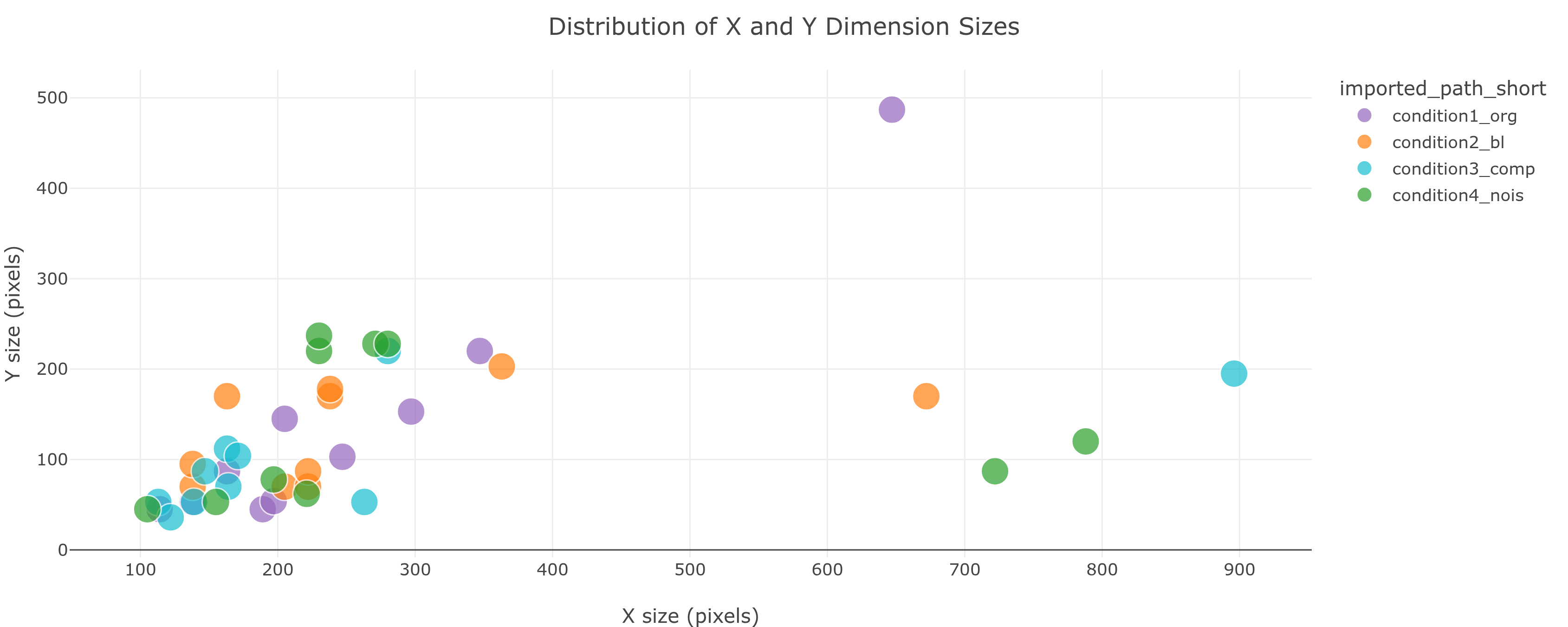
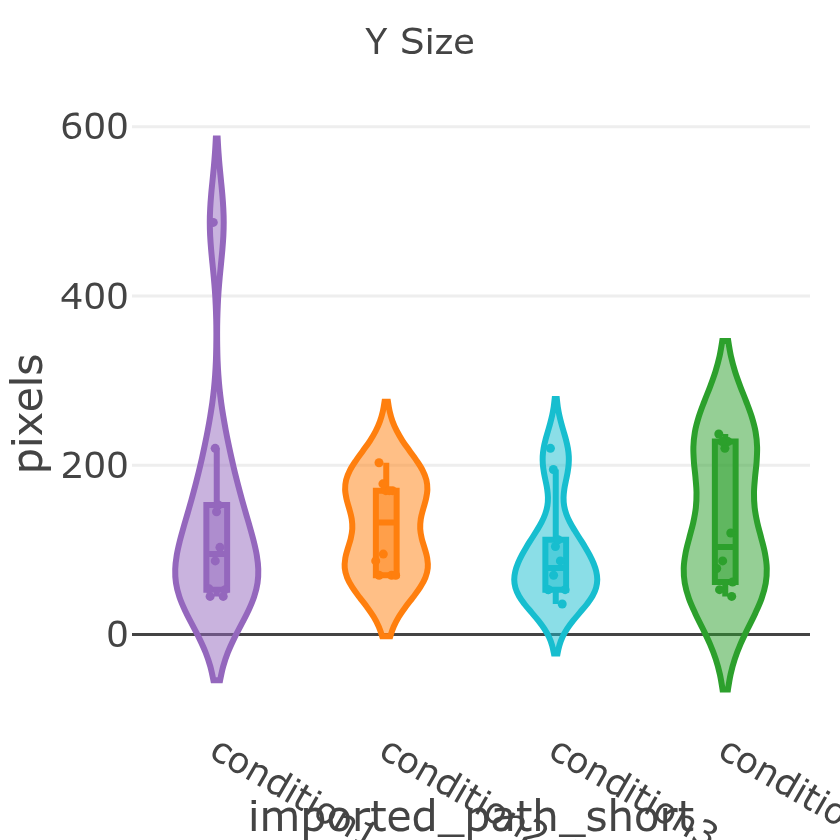
condition1_org has the widest spread, including one very tall image (~580px). That outlier is worth investigating.A thumbnail grid - one patch per image, border color = group. Sort by any metric and your statistics become something you can actually look at and verify with your own eyes.
🔬 How it's computed
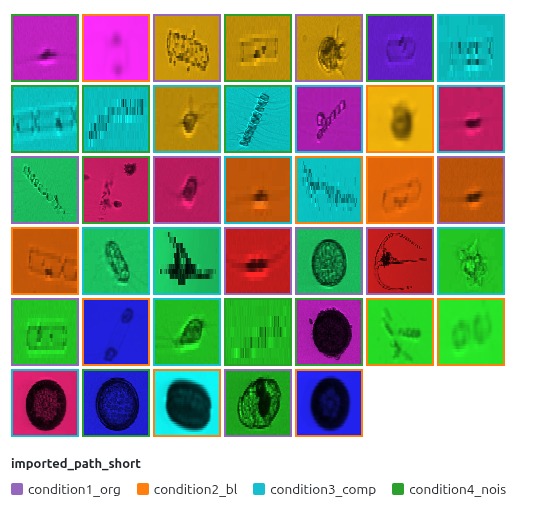
laplacian_variance ascending and the blurred/out-of-focus images will float to the top.laplacian_variance ascending → blurriest images appear first. If they look visually out-of-focus, they are. This is the fastest path to finding focus-drift candidates for exclusion.blocking_index descending to surface JPEG-artifact images. Sort by max_intensity descending to surface potentially saturated ones.Violin + box plots for four per-image statistics: mean_intensity, std_intensity, min_intensity, max_intensity. Each dot is one image; each violin is one group. Use the Slice by toggles above the plots to switch to one point per (image × dimension slice) instead.
🔬 How it's computed
np.nanmean over all pixels, pixel-count-weighted across 2D planes.std: pooled -
√(Σnᵢ(σᵢ² + (μᵢ − μ̄)²) / Σnᵢ) - accounts for both within-plane and between-plane variance.min / max:
np.nanmin / np.nanmax per plane, then min/max across planes.NaN pixels are excluded from all calculations.
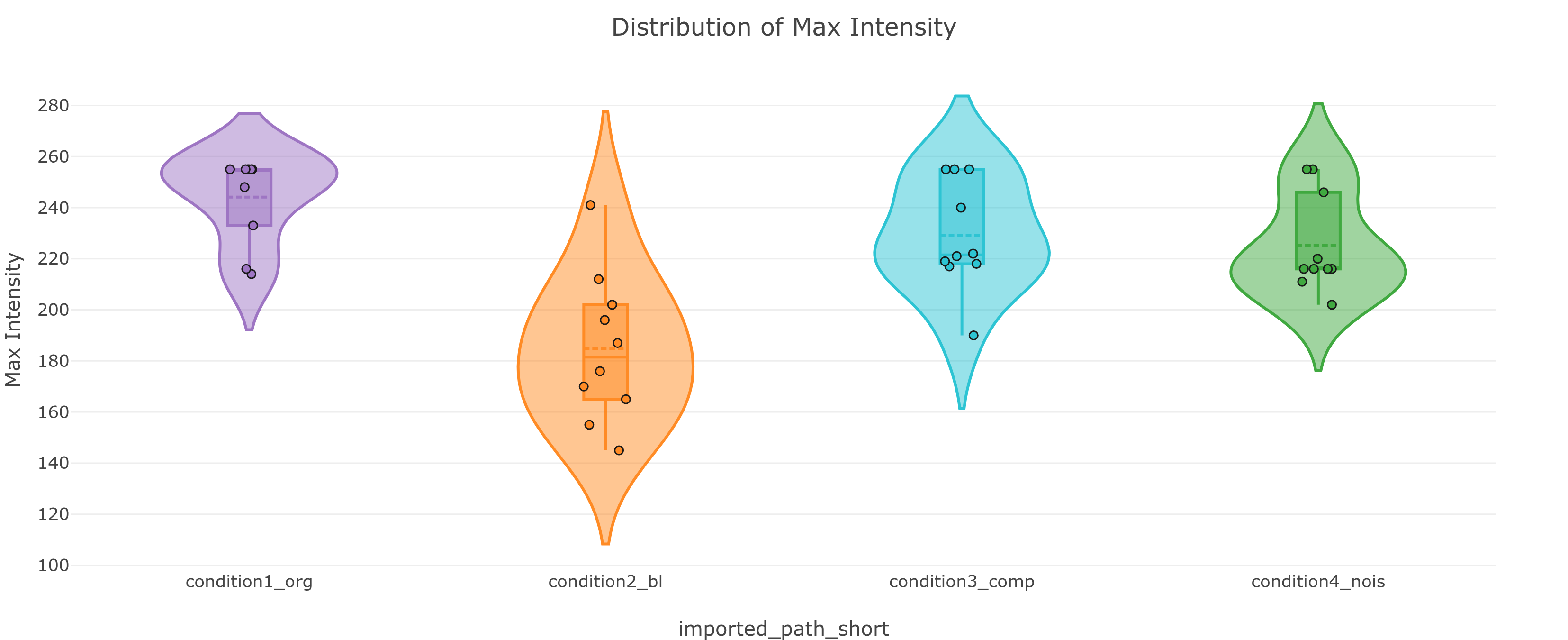
max_intensity distribution - condition2_bl (blurred) has a wide, low distribution. condition1_org clusters tightly near 255. Each dot is one image; hover to identify the file.max_intensity sitting exactly at 255 (or 65535) is worth a closer look - it can mean those images hit the sensor's ceiling and got clipped. Check the histogram for a spike at the max value to confirm real saturation (a single bright pixel can also legitimately land at 255), then verify visually in the mosaic.mean_intensity within a single group: variable illumination, inconsistent staining, or genuinely variable signal.The mean pixel intensity histogram per group - a more in-depth look at whether your pixel intensity distribution looks the way you'd expect. Toggle between a normalized 0-255 view and the native range of your data.
🔬 How it's computed
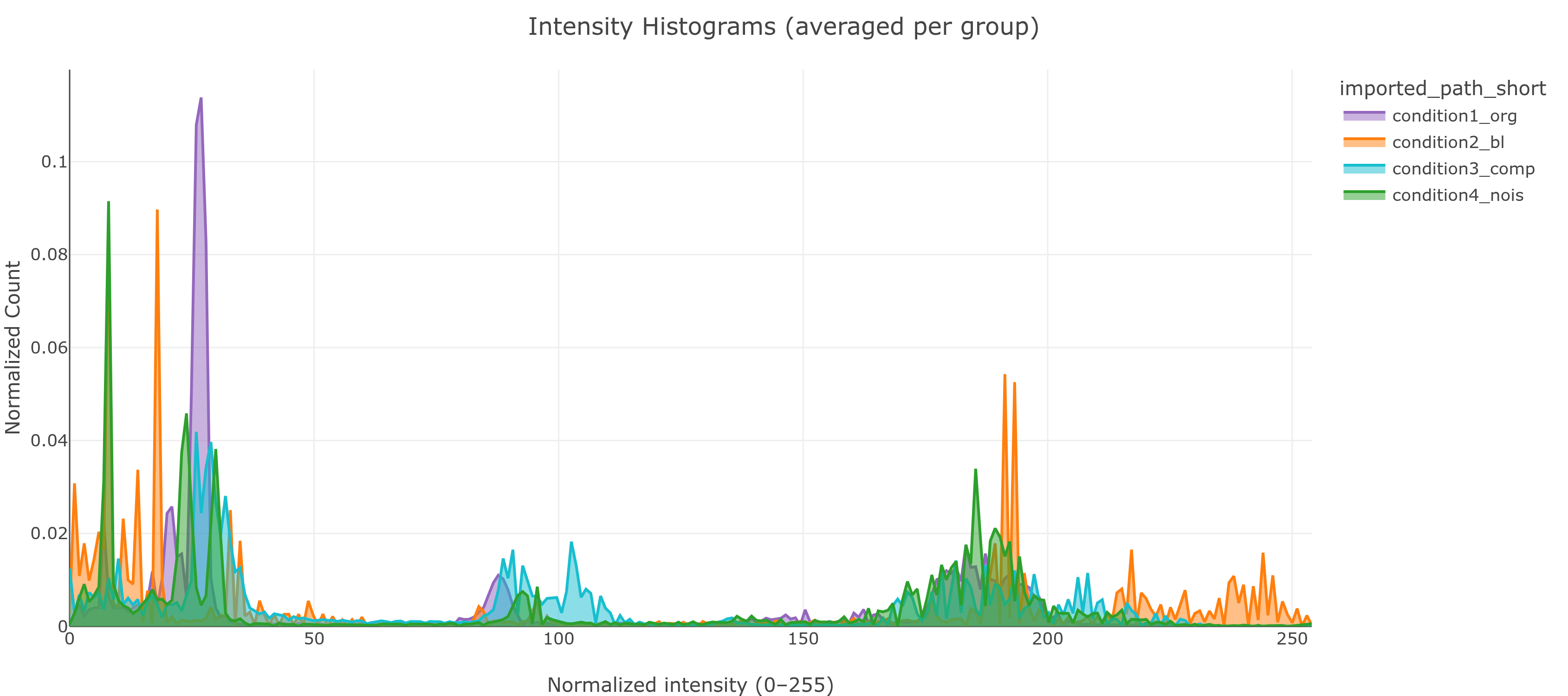
condition2_bl (blurred, orange) peaks around 190 - much brighter on average. condition3_comp (JPEG, cyan) is spread unusually flat. All four peak at 0 (dark background), but to very different degrees.Five quality metrics computed per leaf slice, aggregated by pixel-count-weighted mean. Together they surface a wide range of issues - focus problems, low contrast, sensor noise, uneven texture, and compression artifacts - not just one of these. Only compare images at the same magnification and pixel size - all these metrics are scale-dependent.
The go-to blur detector. High = sharp; low = blurry or out-of-focus.
🔬 How it's computed
left + right + up + down − 4 × center. This second-derivative filter fires strongly at edges and fine texture, near-zero in smooth regions. Blurry image → small response → low variance. Sharp image → large response → high variance.laplacian_variance ascending, and confirm visually. If they look out-of-focus, maybe you want to exclude them.How much local contrast the image has - whether pixel values vary substantially within small neighborhoods.
🔬 How it's computed
max − min (local intensity range). Average all local ranges across the image. Divide by the global spatial standard deviation. Higher = more local contrast relative to overall spread.A no-reference quality metric sensitive to both noise and blur.
🔬 How it's computed
How unevenly texture is distributed - high means some regions are rich while others are flat.
🔬 How it's computed
Detects 8×8-pixel block boundaries - the hallmark signature of JPEG compression.
🔬 How it's computed
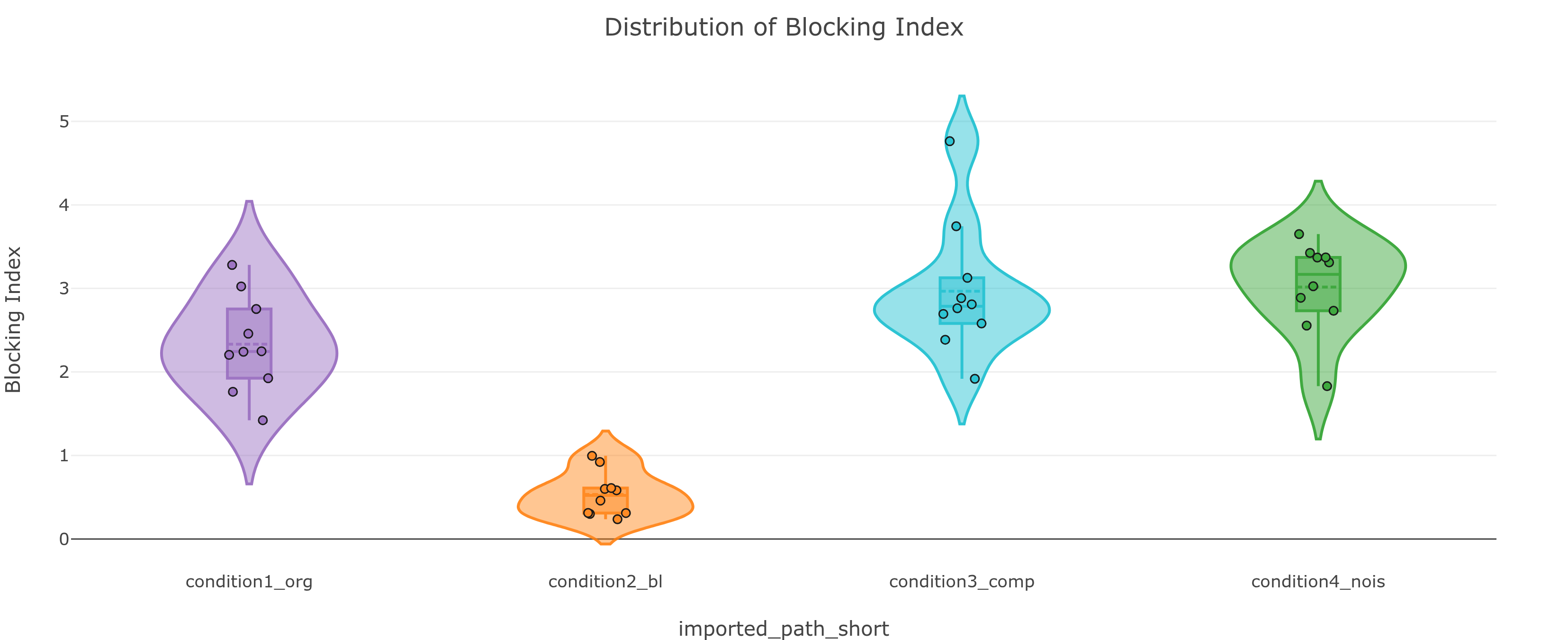
condition3_comp (JPEG) has the highest blocking index - confirming what the file extension chart already hinted at. condition2_bl (blurred) has the lowest, because blurring smooths the block edges.High-frequency oscillations near edges - ringing from lossy compression or aggressive filtering.
🔬 How it's computed
How mean, std, min, and max change as you move along your non-spatial dimensions (e.g. Z, T, C, or S - the exact names depend on your loader) - averaged across all images in each group.
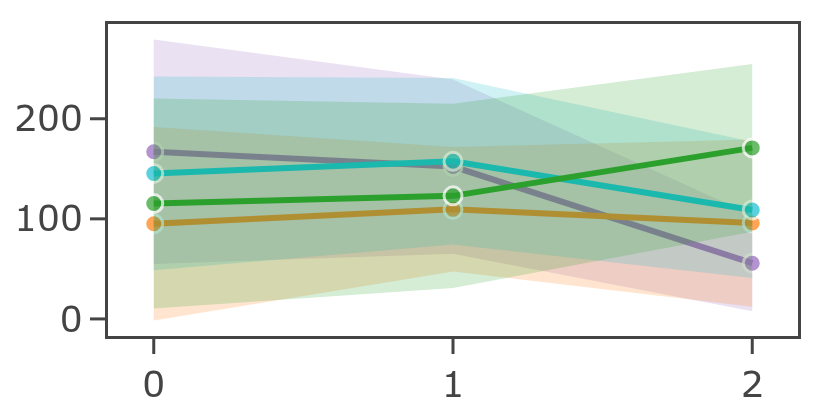
mean_intensity declining over T: photobleaching. Fluorophores are bleaching over the time course - any time-series analysis must account for this.std_intensity increasing over T: growing noise - sample movement, degradation, or instrument drift.How quality metrics change across your non-spatial dimensions (e.g. Z, T, C, or S - names depend on your loader). Best for detecting focus drift across a Z-like dimension or photobleaching effects on contrast over a T-like one.
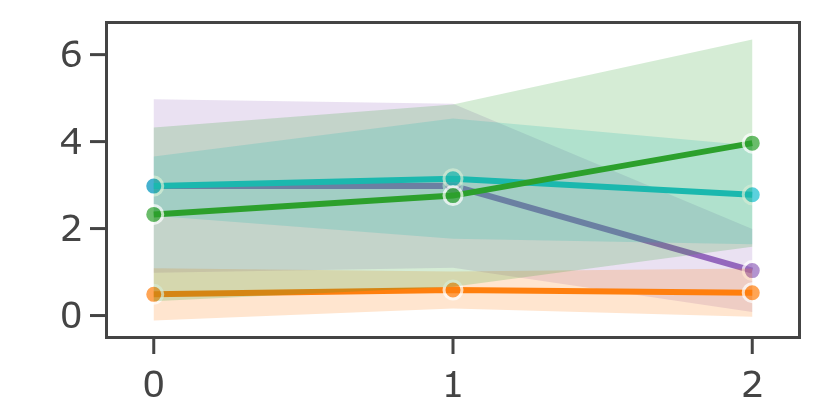
condition4_nois (noisy, dark green) increases sharply at slice 2, while condition2_bl (blurred, orange) stays near zero across all slices.Build your own plot from any columns in the report - pick an X column, a Y column (or (count)), and Pixel Patrol picks a sensible chart type:
- Two numerics → scatter
- Categorical × numeric → violin or bar (mean ± sd)
- Any column ×
(count)→ count bar - Two categoricals → count heatmap
Color by defaults to the app-wide group column, but you can color/split by any other column instead - or, for scatter plots, by a numeric column on a continuous colormap. Each plot has its own Slice by toggles and a per-image / per-slice badge, just like Pixel Value Statistics. Click + Add plot for as many independent plots as you need.
.js file - drop it into an extension's viewer/ folder and list it in extension.json to make it a permanent part of your reports. See Create an Extension.Working with the sidebar
path (your -p conditions). Try file_extension, dtype, or any loader metadata column to ask different questions.Parquet: a new, fully-interactive PP report of only the images that passed your filters.
Common filter examples:
| Goal | Column | Op | Value |
|---|---|---|---|
| Only 16-bit images | dtype |
eq |
uint16 |
| One condition only | path |
eq |
condition_A |
| Sharp images only | laplacian_variance |
gt |
500 |
| Remove dark images | mean_intensity |
gt |
10 |
| Find saturated images | max_intensity |
ge |
254 |
| Exclude a format | file_extension |
not_contains |
.tif |
Saving filtered subsets: Save as CSV gives you the filtered data as a spreadsheet - the same table as the parquet, in a plain, human-readable format. Use it to build an include or exclude list for your pipeline, or just open it and explore the numbers yourself. Save as Parquet creates a new fully-interactive report with only the images that passed your filters - the standard way to share a curated, clean version of your dataset report.