Rendering meshes in VTK
Introduction
- Python based 3D visualization tool
- Supports various formats (STL, OBJ, PLY, ..)
- Advanced rendering capabilities (volume rendering, surface rendering, light and material configuration)
- Supports programmatic animations

Solution to run VTK code
To simplify and unify solutions used in our tutorials, we use Album, a tool for capturing and sharing specific software use cases in dedicated virtual environments.
Click the solution box next to this text and follow the displayed usage instructions to run the solution either from command line or graphical interface.
No catalogs found in .Site.Data.catalogs.
Dependencies
Setting the scene
- The renderer: Manages the 3D scene by adding objects (called actors), processing lighting, and handling the camera to control how the scene is displayed.
- Central component in VTK: The renderer is responsible for compositing all elements (meshes, volumes, etc.) and rendering them into a final image or interactive display.
Loading and Adding Meshes
- Load STL files via
vtkSTLReader - Coloring Meshes via
actor.GetProperty().SetColor()
Loading and Adding Voxel Volumes
Numpy to VTK Conversion
Loading and Adding Voxel Volumes
Color and Opacity Transfer Functions
Loading and Adding Voxel Volumes
Creating a Volume Node
Creating the Render Window
- Render Window: Manages the actual window where the scene is displayed.
- RenderWindowInteractor: Allows for interactive control of the 3D scene using mouse and keyboard inputs.
Result
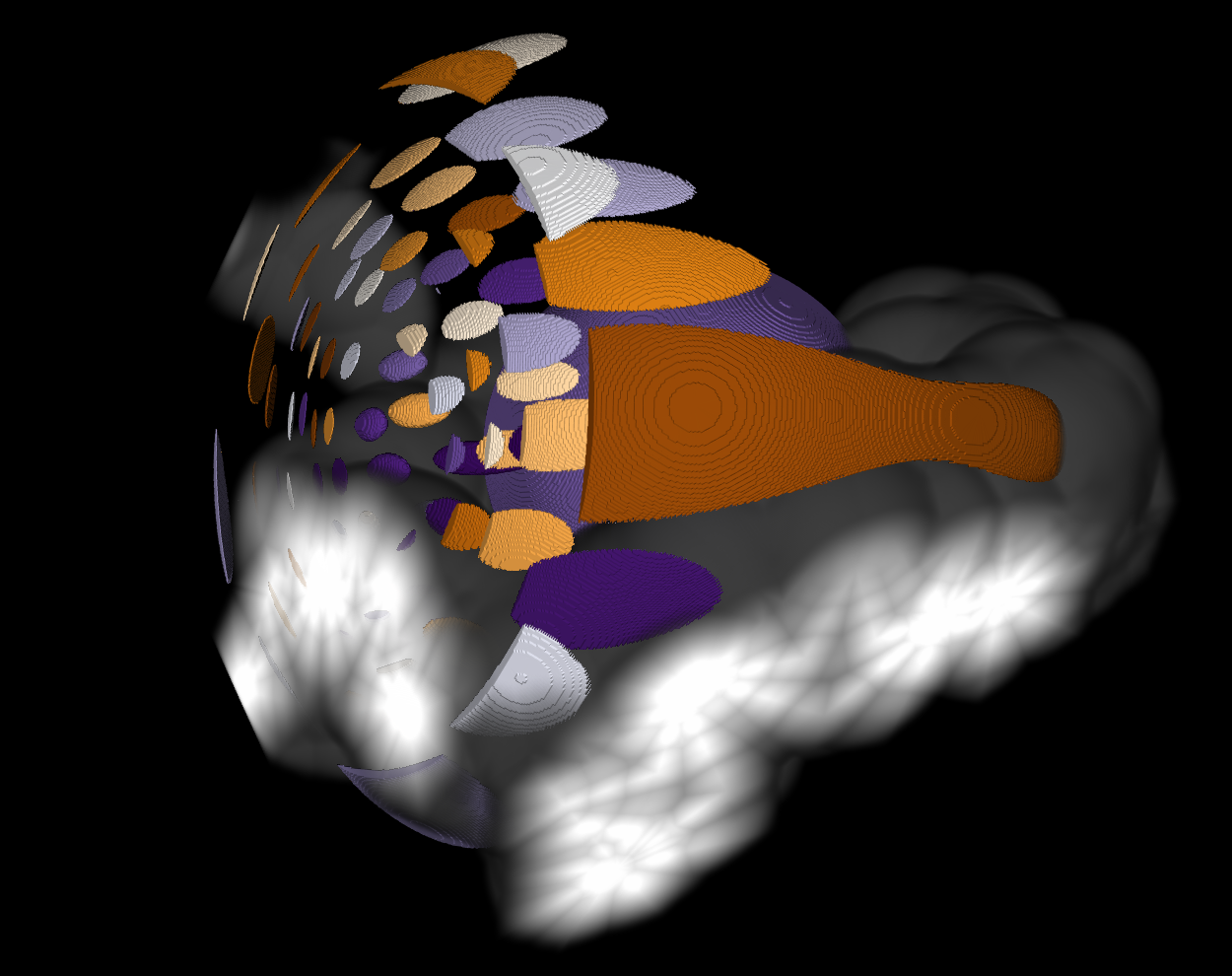
Meshes and volume in one view.